 ghospy
Salesforce to Custom CRM Migration: 12 Steps That Work
· by Wyrote
Step-by-step CRM data migration from Salesforce to a custom system. Covers data export, schema mapping, API extraction, validation, and cutover strategy.
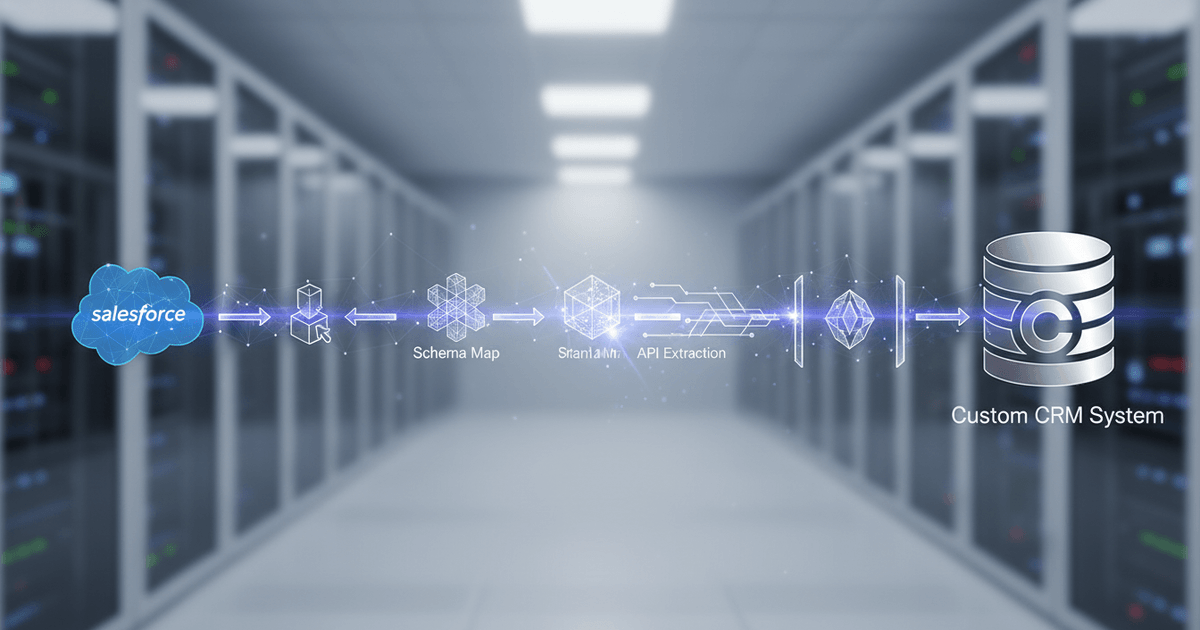
Salesforce's aggressive push into AI agents and Data Cloud throughout 2025 quietly accelerated a trend that most migration guides still ignore: companies moving away from the platform, not toward it. Nearly every CRM data migration resource on the web walks you through importing records into Salesforce. A growing number of mid-sized teams are heading in the opposite direction, extracting their data and rebuilding on custom systems they actually control.
The math explains part of the exodus. Salesforce Enterprise plans charge per-user, per-month fees that can exceed $90,000 annually for a 50-person team before you factor in add-ons, premium support, or AppExchange subscriptions. That licensing model made sense when the platform was the only viable option for sophisticated CRM workflows. It makes less sense when your team uses maybe 20% of the feature set and spends more time navigating configuration screens than closing deals. According to CRM industry research from EmailVendorSelection, only 34% of sales leaders believe their CRM delivers expected customer experiences, a striking number given the cost.
But cost isn't the whole story. The deeper motivations tend to cluster around four recurring pain points:
- Vendor lock-in that makes switching costs feel prohibitive the longer you stay, with proprietary data models and SOQL queries that don't translate to standard SQL
- Feature bloat that overwhelms lean teams who need a focused tool, not an enterprise platform with hundreds of configuration options
- Inflexible workflows where the platform's opinionated structure forces you to adapt your process to the software rather than the reverse
- Escalating total cost of ownership that compounds annually as you add users, storage, and integrations
You might assume building a custom CRM with tailored business logic introduces more risk than staying put. That's a reasonable concern. The risk is real, but so is the cost of staying locked into a platform that increasingly targets large enterprises with dedicated Salesforce admin teams rather than fast-moving mid-sized operations.
This guide covers 12 concrete steps for CRM data migration from Salesforce to a custom system, from Salesforce API data extraction and schema mapping through cutover strategy and rollback planning. Whether you're the VP evaluating the business case or the engineer executing the export, each step includes the technical specifics and decision frameworks you need to move forward without losing data integrity.
Step 1: Define Your Business Case and Migration Goals
A clear business case with measurable goals prevents the stakeholder misalignment and scope creep that cause most CRM migrations to fail before they start.
Most teams skip this step because it feels bureaucratic. That instinct is wrong. According to migration specialists at Girikon, undefined data ownership is the single largest cause of migration failure, leading to duplicate records, unresolved conflicts, and timelines that slip by months. Before touching a single API endpoint, you need a written rationale that every decision-maker has signed off on.
Start by naming the specific pain points driving the move. "We want something better" isn't a business case. "We're paying $94,000 annually in licensing for 50 users, and 60% of our custom objects haven't been accessed in six months" is. Cost reduction, the inability to customize workflows without expensive consultants, restricted access to your own data, and the compounding complexity of expanding AI product suites are all concrete, defensible reasons. Pin each one to a dollar figure or operational metric.
Then translate those pain points into migration goals that can actually be measured. A 99.9% record accuracy threshold, a maximum four-hour cutover window, and full parity on the twelve CRM features your team uses daily are the kind of targets that keep a project honest. Vague aspirations like "better user experience" give everyone permission to declare victory or failure based on feelings rather than data.
Stakeholder alignment matters more than most technical decisions at this stage. Executive sponsors control budget. Sales ops knows which reports and dashboards the team can't live without. IT understands integration dependencies. End users can tell you which features are shelfware: things technically deployed but never opened. Firms managing complex client relationships across consulting and professional services operations often discover that half their CRM configuration serves processes that no longer exist.
Migration charter: Before writing a single line of migration code, create a signed document that outlines the rationale, measurable success criteria, timeline milestones, and named owners for each workstream. This single artifact prevents the "I thought you were handling that" conversations that derail projects at the worst possible moment.
Step 2: Audit Your Salesforce Data Before Anything Else
A thorough data audit across all standard objects, custom objects, file attachments, and metadata prevents roughly half of all post-migration failures caused by dirty data.

Most organizations underestimate what's actually living inside their Salesforce org. Beyond the obvious Accounts, Contacts, and Opportunities, a typical mid-sized implementation accumulates dozens of custom objects, hundreds of unused fields, and thousands of records that haven't been touched in years. Your audit needs to surface all of it before a single record moves anywhere.
Start by generating a complete inventory of your org's data model. Salesforce's Schema Builder gives you a visual map of object relationships, while the Data Export service (available under Setup > Data Export) lets you pull CSVs of every object for offline analysis. Run record counts on each object. A 200-person logistics company that audited their org before migrating discovered 14 custom objects that only one departed employee had ever used, containing over 40,000 records tied to an abandoned workflow.
Once you have the full picture, flag these specific problems for cleanup:
- Duplicate records across Accounts, Contacts, and Leads (cross-object matching catches duplicates that simple email-based dedup misses)
- Orphaned child records pointing to deleted parents, which break relational integrity in any target database
- Fields with less than 5% fill rates, suggesting they're no longer business-relevant
- Stale records with no activity in 18+ months that inflate migration volume without adding value
Then document the Salesforce-specific structures your custom system won't natively replicate: polymorphic lookup fields (like WhoId and WhatId on Tasks), formula fields that calculate values on the fly, restricted picklist values, record types, and validation rules. Each of these needs a translation plan in your target schema.
One category teams consistently forget is file-based data. According to Flosum's migration guide, Salesforce Files, Notes, classic Attachments, and Chatter posts all require separate extraction strategies because they're stored differently than standard object records. Skipping this step means losing customer communication history that your sales team relies on daily. Inventory these assets during the audit, not after you've already started moving structured data.
Step 3: How Do You Map Salesforce Objects to a Custom Database Schema?
Data mapping translates Salesforce's flexible object model into a relational database schema by explicitly defining how each field, relationship, and picklist converts to custom tables and columns.
Salesforce stores data in a loosely structured way that doesn't translate one-to-one into a traditional relational database. Accounts, Contacts, and Opportunities feel like database tables, but they're layered with metadata, polymorphic relationships, and computed fields that have no direct equivalent in PostgreSQL or MySQL. The mapping document you create here becomes the single source of truth for every transformation your migration scripts will perform.
Start with the straightforward translations. Your Salesforce Account object becomes a companies table, with AccountId converting to a company_id primary key and Account Name mapping to company_name. Contacts follow a similar pattern, though you need to resolve each Contact's AccountId lookup into an explicit company_id foreign key in your relational schema. Opportunities become a deals table where the Stage picklist maps to a status enum type and the Amount field converts to a decimal currency column with defined precision.
The real complexity hits when you reach polymorphic lookups. Salesforce's WhoId and WhatId fields on Tasks and Events can point to Contacts, Leads, Accounts, or Opportunities depending on context. A relational database can't replicate that ambiguity without sacrificing referential integrity. The proven approach: resolve each polymorphic field into separate explicit foreign keys (contact_id, deal_id, company_id) in your activities table, with application logic determining which key gets populated.
Formula fields and rollup summaries present a different challenge entirely. These computed values don't exist as stored data in Salesforce, so they won't appear in any export. You have two options: precompute the values during extraction and store them as static columns, or replicate the calculation logic using database views and triggers in your custom system. For teams building custom CRM systems with tailored business logic, recreating formula logic in the application layer often proves more maintainable than database-level triggers.
Auto-mapping tools are commonly pitched as handling most of this translation automatically. That's only partially true. Auto-mapping works for standard fields where API names align neatly (like AccountName to company_name), but it fails completely on custom objects, polymorphic lookups, and any field where your custom schema intentionally diverges from Salesforce's structure. According to Salesforce's own mapping documentation, custom fields require explicit mapping rules defined per object tab, and skipping this step leads to silent data loss during migration.
Teams that spend two to three days on mapping documentation consistently save two to three weeks of debugging after cutover. The investment is lopsided in your favor.
| Salesforce Object | Custom Database Table | Key Mapping Considerations |
|---|---|---|
| Account | companies |
Map AccountId to company_id primary key. Person Accounts require combining Account and Contact fields, using Last Name as fallback identifier. |
| Contact | contacts |
Resolve AccountId lookup to company_id foreign key. Map Last Name to contact_last_name. |
| Opportunity | deals |
Convert Stage picklist to a status enum. Map Amount to a decimal currency field with defined precision. Include Quantity and Sales Price if line items exist. |
| Task / Event | activities |
Resolve polymorphic WhoId and WhatId into separate contact_id, deal_id, and company_id foreign key columns. |
| Lead | leads (or merge into contacts) |
Decision point: maintain a separate leads table or unify with contacts. Lead conversion logic changes significantly based on this choice. |
| Custom Objects | New tables (snake_case naming) | Map API names to snake_case table names. Recreate custom field types explicitly. No auto-mapping available. |
Common Salesforce Object to Custom Database Schema Mapping Reference
One thing that catches teams off guard: picklist values. Salesforce distinguishes between restricted and unrestricted picklists, and your custom schema needs to account for both. Restricted picklists map cleanly to database enum types, but unrestricted ones (where users could historically enter any value) often contain dozens of inconsistent entries that need normalization before they can fit into a lookup table.
Step 4: What Salesforce API Methods Should You Use for Data Extraction?
Bulk API 2.0, REST API, Data Loader, and Weekly Data Export each serve distinct extraction scenarios based on dataset size, technical resources, and real-time requirements.

Your extraction method choice determines whether migration takes hours or weeks. Bulk API 2.0 handles asynchronous, query-based extraction through SOQL, outputting CSV files that slot directly into ETL pipelines. A query like SELECT Id, Name, Email FROM Contact WHERE LastModifiedDate > 2023-01-01 pulls only records modified after a specific date, which according to ETL benchmarks can reduce payload size by 70-90% compared to full extracts. For an org with 2 million contacts, incremental extraction turns a multi-day job into something manageable in a few hours.
REST API fills a different gap. During parallel-run periods (when both systems operate simultaneously), you need targeted, real-time delta syncs that capture records changed since the last pull, and rEST handles paginated results well for these smaller, frequent extractions, though you'll need retry logic for HTTP 429 responses when you hit rate ceilings. Enterprise edition orgs start with a base of 15,000 API calls per day, and that number scales with your data volume and add-on licenses.
Data Loader works for teams without dedicated developers. It's a free, GUI-based desktop application that runs SOQL queries and exports up to 5 million records per batch, and the catch: it requires manual batch planning, and there's no native scheduling for real-time syncs. For a one-time full export of reference data like picklist values or user records, Data Loader is perfectly adequate. For anything iterative, you'll outgrow it quickly.
Bulk API isn't always the fastest option. Because Bulk API 2.0 processes jobs asynchronously (you submit a job, poll for status, then download results), it introduces latency that REST API avoids for smaller targeted pulls. Match your method to the job, not to what sounds most powerful.
| Extraction Method | Best For | Record Limit | Technical Skill Required | Speed |
|---|---|---|---|---|
| Bulk API 2.0 | Full migrations, large object exports | Millions of records per job | High (SOQL, async job management) | Fastest for bulk; async polling adds latency |
| REST API | Delta syncs, targeted queries, parallel runs | Pagination-dependent, governed by daily API call limits | Moderate (JSON parsing, retry logic) | Fast for small sets, slow for large volumes |
| Data Loader | One-time exports, reference data pulls | 5 million records per batch | Low (GUI-driven, point-and-click) | Moderate, manual batch execution |
| Weekly Data Export | Full org backup, archival snapshots | Entire org as CSV/ZIP | None (scheduled via Setup menu) | Not real-time, runs on weekly schedule |
One thing nobody mentions about Weekly Data Export: it's useful as a safety net backup before you begin API-based extraction, giving you a complete ZIP archive of your org that costs nothing and requires zero technical setup. Run it the week before migration starts.
Plan your extraction sequence by object dependency. Accounts before Contacts, Contacts before Opportunities, parent records before children. Reversing that order means your foreign key references point to records that don't exist yet in the target system, and debugging broken relationships across millions of rows isn't how anyone wants to spend a sprint.
Step 5: Clean, Deduplicate, and Transform Your Data
Migrating unclean data into a custom system multiplies existing errors across every integrated workflow, costing organizations up to 25% of revenue from downstream data quality failures.
Dirty data doesn't just carry over, and it compounds. Duplicate contacts trigger redundant sales outreach. Malformed phone numbers break automated SMS workflows. Inconsistent date formats cause reporting dashboards to misinterpret quarterly trends as monthly ones. According to research from Hashstudioz, organizations that skip proper data cleaning before migration risk losing 15 to 25% of revenue from downstream data quality failures.
Post-migration cleanup costs three to five times more than pre-migration cleaning. By the time you've cut over, bad data has already polluted automated workflows, triggered incorrect notifications, and eroded user trust. If sales reps encounter duplicate or incorrect records in the first week, they'll abandon the new system for spreadsheets, and recovering their buy-in is an uphill battle.
Standardization comes first. Every phone number needs a consistent format (E.164 international standard works well for custom databases). Addresses should follow a single structure with separate fields for street, city, state, postal code, and country. Date fields exported from Salesforce as YYYY-MM-DDThh:mm:ssZ may need conversion depending on your custom database's timezone handling, and currency fields require explicit denomination tagging if your org operates across multiple regions.
Deduplication requires matching rules tailored to your data's specific weaknesses. Email address matching catches obvious duplicates, but company name combined with domain catches the subtler ones: "Acme Corp" and "ACME Corporation" both pointing to acme.com. Financial services firms handling multi-entity CRM consolidations face particularly complex deduplication because a single client may appear under personal accounts, business accounts, and trust accounts simultaneously.
Transformation handles Salesforce-specific data types that have no direct equivalent in standard relational databases, and multi-select picklist values stored as semicolon-delimited strings become array fields or junction tables. Rich text fields containing Salesforce's proprietary HTML need sanitization into clean HTML or markdown. Encrypted fields require decryption during export and re-encryption using your custom system's security protocols.
ETL tools like Talend and Apache NiFi automate these transformation pipelines at scale. For smaller datasets or highly specific transformations, custom Python scripts using pandas give you granular control over every conversion rule. Build repeatable pipelines, not one-off manual fixes.
Always preserve original Salesforce record IDs as a dedicated reference column in your custom database. These IDs serve as your traceability lifeline during post-migration validation, letting you trace any record in the new system back to its exact Salesforce source. Skip this step, and debugging data discrepancies becomes nearly impossible.
Data cleansing typically requires four to eight weeks and can partially overlap with system configuration. Assign a dedicated data quality specialist to own this phase, and when nobody owns data decisions, duplicates multiply and timelines slip.
Step 6: Why You Should Never Skip Building a Rollback Plan
Rollback planning before migration starts prevents permanent data loss, since failed migrations become irreversible once the source system is deactivated or overwritten.

Most migration guides bury rollback in a footnote near the end. That's backwards. A rollback plan needs to exist before the first record leaves your source system, because once you've cut over and deactivated your old environment, reverting becomes nearly impossible. Industry practitioners consistently confirm that skipping rollback testing hides errors until after go-live, when confidence is already damaged and losses start compounding.
Treat rollback as the first artifact you test, not the last. Teams that validate their reversion procedures under realistic conditions (with production-scale data, not a sandbox with 50 test records) catch integration gaps and permission mismatches that would otherwise surface during a crisis.
Defining clear rollback triggers eliminates the ambiguity that causes teams to freeze mid-migration, and data corruption in any core entity like contacts or deal records should activate an immediate halt. Record count discrepancies exceeding 1% between source and target after a batch load warrant investigation before proceeding. Integration breakdowns where your ERP, email platform, or billing system can't authenticate against the new endpoints are another hard stop. If any of these occur, the team should know exactly who makes the call and what happens next.
Keep your existing CRM subscription active for a minimum of 30 to 60 days after cutover. That overlap period isn't wasted spend. It's insurance. During those weeks, your team can validate that the custom system handles real workflows correctly while the old environment remains accessible for comparison and emergency fallback.
Before migration begins, generate a full backup using the Weekly Data Export feature or a dedicated backup tool like OwnBackup. Store the export independently from both environments (cloud storage with versioning works well). Then document the specific reversion steps: revert DNS and SSO configurations to point back to the original system, restore API integrations to their previous endpoints, and send a prepared communication template to users explaining the temporary rollback. Each step should have an owner and an estimated completion time.
Building rollback into your broader technology transformation plan turns a potential catastrophe into a controlled, reversible process.
Step 7: How Do You Load Data Into Your Custom CRM System?
Loading data into a custom CRM requires a strict parent-to-child sequence: companies and users first, then contacts and deals, then junction records linking them.
Get this order wrong and you'll spend days hunting orphaned records. A contact record that references a company ID not yet loaded will either fail silently or create a null relationship that corrupts downstream reporting. Every foreign key must point to a record that already exists in the target database before the referencing record lands.
Start with standalone entities. Companies, user accounts, and picklist/reference tables carry no foreign key dependencies, so they load cleanly in any order relative to each other. Once those are confirmed and their new primary keys are mapped back to the original Salesforce IDs (you'll need that crosswalk table from your earlier mapping work), move to child entities like contacts, opportunities, and deals. Each child record's foreign key gets swapped from the old Salesforce ID to the new system's ID using your crosswalk. Only after parent-child relationships are solid should you touch junction records: account-contact roles, opportunity-team assignments, or custom many-to-many relationships.
Batch imports need transaction rollback built in. If record 847 out of 1,000 fails a validation rule, the entire batch should revert, not leave 846 committed records and a gap. Partial commits are worse than full failures because they create an inconsistent state that's harder to diagnose than a clean rollback. Most modern ORMs and database frameworks support transactional batch operations natively. Configure your import scripts to use them.
File attachments deserve their own migration track entirely. Salesforce stores files through ContentDocument and ContentVersion objects, which don't map neatly to a relational schema. Extract the binary files, push them to object storage like S3 or Azure Blob, then store the resulting URLs as references in your custom CRM's attachment table.
After the initial bulk load completes, the source system doesn't freeze. Sales reps keep logging calls. New leads arrive. Delta syncs handle this gap by querying Salesforce for records created or modified after your bulk extraction timestamp, then applying those changes incrementally. Run delta syncs at regular intervals (every few hours during the migration window) until cutover day, when you perform one final sync and lock the source.
Step 8: Reconnect Third-Party Integrations and Automations
Every third-party integration requires mapping its data flow direction, trigger logic, and shared fields before rebuilding against custom API endpoints.

Your CRM doesn't operate in isolation. It talks to your billing platform, your email provider, your ERP, your support desk, and probably a dozen other tools you've forgotten about. Ripping out the Salesforce layer without reconnecting these systems creates silent failures: invoices stop syncing, marketing campaigns lose contact data, and support tickets disconnect from customer records.
Start by inventorying every active integration. Pull up your connected apps list and document each one: HubSpot or Marketo for marketing automation, Outlook or Gmail for email sync, Stripe or QuickBooks for billing, Zendesk for support tickets, and any ERP connections feeding inventory or fulfillment data. Most teams discover 30 to 50% more integrations than they initially expected, because shadow connections built by individual departments rarely appear in official documentation.
For each integration, answer three questions, and which direction does data flow (one-way push, one-way pull, or bidirectional)? What event triggers a sync (record creation, field update, scheduled batch)? Which specific fields travel between systems? A Stripe integration might push payment status and invoice amounts into the CRM while pulling customer email and subscription tier back out. Missing even one field mapping means your finance team loses visibility into revenue attribution.
Prioritize rebuilding revenue-critical connections first. Billing and email integrations directly affect cash flow and customer communication, and a broken Stripe webhook costs real money within hours. Marketing automation and analytics integrations, while important, can tolerate a brief gap.
Process Builder workflows and Flows built inside the old platform won't transfer. You'll need to rebuild that automation logic using your custom system's event handlers, or route it through middleware like Zapier, Make, or custom webhooks. Middleware often works better here than hard-coded logic, because it lets non-technical team members modify trigger conditions without deploying new code.
Test every rebuilt integration in a staging environment before production cutover. Push sample records through each connection and verify that data arrives in the correct fields, in the correct format, on both sides. Skipping this step is the single biggest source of post-migration failures across integration-heavy migrations.
Step 9: Run a Parallel System Test Before Full Cutover
Operating both the old and new CRM simultaneously for two to four weeks catches data discrepancies that isolated testing consistently misses.
A parallel run isn't just a safety measure. It's the only reliable way to confirm that your custom system produces the same outputs as the source environment under real operating conditions. During this period, your team enters new data into the custom CRM (and either mirrors entries into the old system or syncs back automatically), then compares reports, dashboards, automation triggers, and calculated fields side by side. Identical inputs should produce identical outputs. When they don't, you've found a problem worth fixing before it reaches production.
Formula fields are the usual culprit when discrepancies appear. A rounding difference in a commission calculation or a currency conversion that references a stale exchange rate table will cascade through every report that touches revenue data. One enterprise caught exactly this kind of integration break during parallel regression testing, compressing what would have been hours of post-launch debugging into minutes of pre-cutover correction, according to testing best practices documented by Virtuoso QA.
The biggest risk isn't technical failures. It's assuming that passing automated checks means the system is ready. Real users running real scenarios (forecasting next quarter's pipeline, generating a client renewal report, triggering an escalation workflow) reveal gaps that scripted tests can't anticipate. Teams building a custom CRM tailored to their operations often discover that edge cases in their specific business logic only surface when a sales rep or account manager runs their actual daily workflow against live-volume data.
Parallel-Run Exit Criteria Checklist: Proceed to full cutover only when record counts match across both systems, all parent-child relationships are intact, calculated fields and formula outputs align within acceptable tolerance, UAT scenarios pass with real users on production-volume data, and performance under load meets defined SLAs. If any criterion fails, extend the parallel period and investigate before proceeding.
Teams that integrate continuous validation into their deployment pipeline, running comparison checks on an ongoing basis rather than just during a fixed window, catch regression issues that surface weeks after the initial migration passes. Treat the parallel run as a process, not a one-time gate.
Step 10: Validate Data Integrity With Post-Migration Testing
Post-migration validation requires checking record counts, field-level accuracy, relationship integrity, and business report outputs against original Salesforce baselines before go-live.

Record count validation is the fastest sanity check. Query every object type in both systems and compare totals: accounts, contacts, opportunities, activities, notes, attachments. If you migrated 14,832 contacts from your source environment, you should see exactly 14,832 in the custom system (or within whatever tolerance you defined during planning, typically zero for core objects and up to 0.1% for non-critical metadata). Any gap means records were dropped, duplicated, or misclassified during transformation.
Field-level spot checks go deeper. Pull a random sample of 5-10% of records per object and compare individual field values against the source data you exported. Pay special attention to fields that underwent transformation: phone number formats, multi-select picklists converted to relational tables, currency fields that changed precision, and date fields that shifted time zones. Transformed fields matter more than the ones that passed through unchanged, because transformation logic is where subtle bugs hide.
Relationship integrity testing catches a different class of failure entirely. A contact might exist in your custom system with all the right field values but be linked to the wrong company. Verify parent-child relationships explicitly: contacts to companies, activities to deals, line items to opportunities. One manufacturing firm with roughly 200,000 deal records discovered during validation that 6% of their activity logs had been reassigned to incorrect opportunities because of a sorting error in the migration script. Catching that before cutover saved weeks of manual correction.
Testing user permissions and role hierarchies is the step teams most often skip. Log into the custom system as different user roles (sales rep, manager, admin) and confirm that data visibility rules align with your 2026 CRM access policies. A rep shouldn't see another territory's pipeline. A manager should see rolled-up numbers for their team only.
Finally, run your key business reports in both systems simultaneously. Compare pipeline value, win rates, average deal size, and activity metrics, and these are the numbers executives rely on for decisions. If the custom system's pipeline report shows $2.3M and the source baseline shows $2.1M, something in your opportunity stage mapping or amount calculation diverged. Trace the discrepancy to its root before declaring the migration complete.
Step 11: How Do You Manage User Adoption After Leaving Salesforce?
Role-specific training starting two to three weeks before cutover, combined with departmental CRM champions, prevents the adoption collapse that causes most migration investments to fail.
Sales reps who encounter duplicate records or broken workflows on day one don't file bug reports. They open spreadsheets. That reversion pattern is the single biggest threat to your migration investment, because reduced user adoption is the primary reason CRM investments fail. The technology can be flawless. If people don't trust it, they won't use it.
The mistake most teams make isn't skipping training altogether. It's scheduling training for the week after go-live, when everyone is already stressed and falling behind on quota. Two to three weeks before cutover, your team should be logging into the new system daily, building muscle memory with the interface while the old system still handles production work. By the time you flip the switch, clicking through a new pipeline view should feel routine, not foreign.
Training content should differ sharply by role. Account executives need to practice pipeline management, activity logging, and deal progression in the custom interface. Sales managers need hands-on time with reporting dashboards and forecasting views, since these are the screens they'll live in daily. System administrators need configuration walkthroughs covering user permissions, field customizations, and automation rules, and generic "here's the new CRM" sessions waste everyone's time and build resentment.
Appoint one or two power users per department as CRM champions before go-live. These aren't trainers. They're peers who answer the quick questions that pile up in the first month. "Where did the bulk email button go?" gets resolved in Slack instead of becoming a support ticket. Champions also surface patterns in confusion, giving your team a feedback channel that formal surveys miss.
The first 30 days after cutover determine long-term adoption. Gather feedback aggressively through short daily surveys, champion reports, and usage analytics. If eight people ask how to export a contact list by day three, ship a UI improvement by day five. Quick wins like these, alongside strategies that speed up user engagement in new platforms, build the trust that prevents backsliding.
Communicate what's better, not just what's different, and faster page loads. A cleaner interface without the clutter of unused Salesforce modules. Features that previously required expensive add-ons now built natively into the system. Freshworks reported in 2024 that 97% of CRM users who fully adopted their platform met or exceeded sales targets, compared to just 54% without CRM adoption. Frame the new system as a competitive advantage your team earned, not a disruption they're enduring.
Step 12: Decommission Salesforce and Improve Your Custom CRM
Maintaining read-only access to your old CRM for 60 to 90 days post-cutover prevents audit gaps and gives teams a reliable reference during stabilization.
Rushing to cancel your subscription the day after go-live is one of the most common and costly mistakes in any CRM transition. The 60-to-90-day window serves a critical purpose: it lets finance reconcile historical reports, gives compliance teams access to audit trails, and provides a fallback reference when someone questions whether a record migrated correctly. Only after that validation period should you begin the formal shutdown sequence.
Start by exporting a final full backup of every object, attachment, and metadata configuration. Store this archive in at least two secure locations (encrypted cloud storage plus an offline copy) with clear retention labels matching your industry's compliance requirements. Regulatory audits can surface years after a system goes offline, and reconstructing data from memory or partial exports won't hold up.
Once the backup is verified, revoke every API key and OAuth token connected to the old environment. Disconnect webhook endpoints, middleware connectors, and any third-party tools (Slack notifications, marketing automation platforms, billing integrations) still pointing to the legacy instance. Unhandled integrations are a frequent source of post-migration errors because they silently push or pull data to a system nobody is monitoring anymore.
Review your contract for the non-renewal notice period. Many enterprise CRM agreements auto-renew 30 to 60 days before the term ends, so missing that window locks you into another billing cycle. Flag the date in your project plan from day one of migration planning.
With the old system retired, shift focus to optimizing the new one. Monitor query performance, track error logs, and collect structured user feedback weekly for the first quarter. Teams that understand the custom CRM development process know that the real gains come in phase two: building features that were impossible under the old platform's constraints, like custom scoring models, industry-specific workflows, or AI-driven automation tailored to your exact sales motion.
Calculate and document your actual cost savings by comparing eliminated per-user licensing fees against custom CRM development, hosting, and maintenance costs. This financial snapshot validates the business case for stakeholders and establishes the baseline for measuring ongoing ROI as you iterate on the new system.
Frequently Asked Questions About CRM Data Migration From Salesforce
How long does a CRM data migration from Salesforce to a custom system typically take?
Small organizations with fewer than 100,000 records can often complete the full migration in 4 to 8 weeks. Mid-sized teams dealing with complex schemas, multiple integrations, and custom objects should plan for 3 to 6 months, including parallel-run validation and user training phases. The single biggest variable is how many third-party integrations need to be rebuilt in the target system.
Can I export all my data from Salesforce including files and attachments?
Yes, but structured data and files require separate extraction workflows. Salesforce stores files in ContentDocument and ContentVersion objects rather than alongside standard record tables. You'll need the Bulk API or Salesforce Data Loader for structured records, then the REST API or a dedicated third-party tool to download binary files like PDFs, images, and email attachments individually.
What happens to Salesforce formula fields and automation rules during migration?
They don't transfer. Formula fields, Process Builder workflows, and Flows are Salesforce-proprietary logic with no equivalent export format. You have two options: precompute every formula field's current value before export and store it as static data in your new system, or rebuild the calculation logic from scratch. Document every formula and automation rule during the audit phase so nothing gets missed during reconstruction.
How much does it cost to migrate from Salesforce to a custom CRM?
Total cost depends on data volume, integration complexity, and how much custom development the target system requires. Budget line items include CRM development, data migration engineering, integration rebuilding, team training, and parallel-run hosting. Salesforce Enterprise plans run $150 to $300 or more per user per month, so eliminating that recurring cost often delivers positive ROI within 12 to 18 months for teams of 30 or more users.
Is there a risk of losing data during Salesforce migration?
Data loss is possible but entirely preventable with the right safeguards. Take a full Salesforce backup before starting, validate record counts at every extraction and loading stage, and run field-level spot checks on randomized samples. Keeping read-only Salesforce access active for 60 to 90 days after cutover gives you a verified reference point if discrepancies surface later.
What is the biggest mistake companies make when migrating away from Salesforce?
Underestimating data complexity. Most teams focus on moving core records (accounts, contacts, opportunities) but overlook Salesforce-specific structures like polymorphic lookups, multi-select picklists, and record type dependencies that don't map cleanly to a relational database. A thorough schema audit before writing a single migration script prevents weeks of costly rework after go-live.
Ready to Migrate From Salesforce to a CRM Built for Your Business?
Every step in this guide points to one outcome: a CRM that fits your business instead of forcing your business to fit the CRM. If your team is ready to make that shift, Ghospy's Custom CRM Development service builds AI-powered systems engineered around your exact sales, support, and customer management processes. Reach out for a free migration assessment to get started.